
To maintain a clean layout in image-rich jobs, try using this handy trick for enlarging images only when you hover your mouse over them:
-
Enter the following block of code into the Custom CSS field in your job:
.thumbnail { top:-50px; left:-35px; display:block; z-index:999; cursor: pointer; -webkit-transition-property: all; -webkit-transition-duration: 0.3s; -webkit-transition-timing-function: ease; } /*change the number below to scale to the appropriate size*/ .thumbnail:hover { transform: scale(3); } -
Add the attribute, class="thumbnail" to each image element that you would like to enlarge on hover so that the element looks something like this:
<img src="[your hosted image URL]" class="thumbnail" height="100" width="100" /> -
Save your job and test it out in preview mode. You can always modify the original size of the image by changing the width and height in the <img> tag. Additionally, you can change the size to which it enlarges by increasing or decreasing the “scale” value in the CSS provided above.
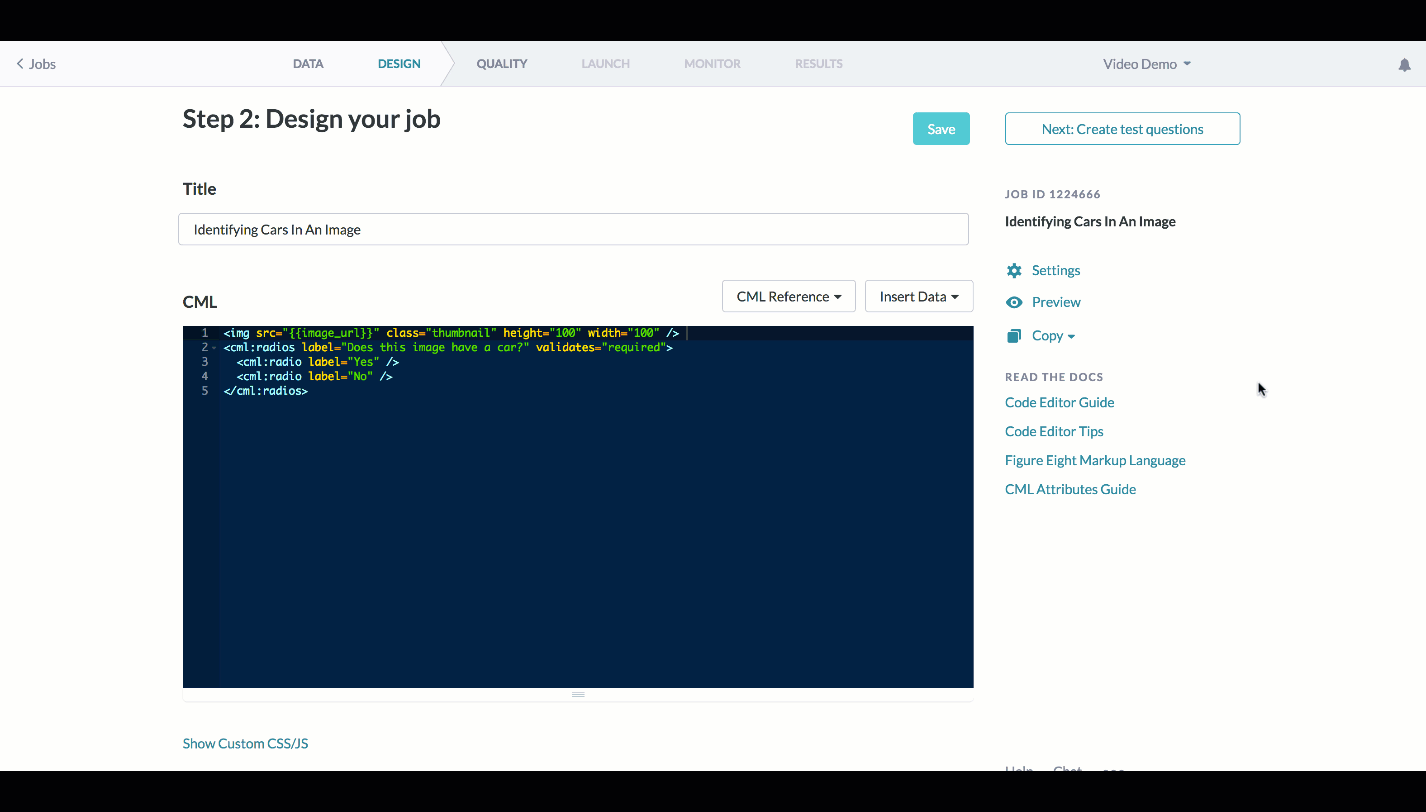
Once you have modified the settings to your satisfaction, hit "Save" again. You're all set: your images now are set up to enlarge when a contributor hovers on them with his or her mouse.