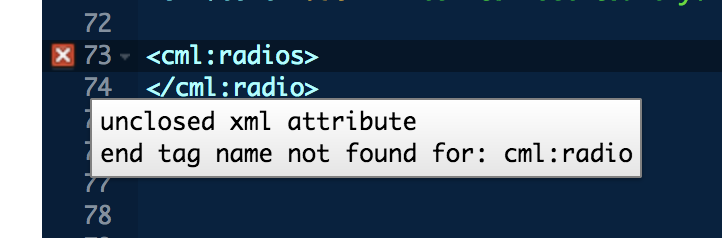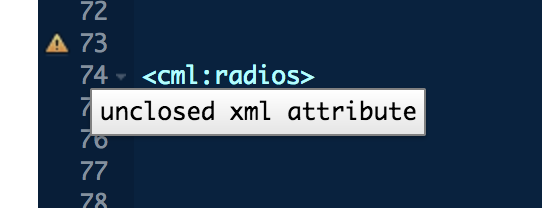
We've implemented the Ace Code Editor on our platform. Here are some tips and tricks to using it!
The Ace Code Editor has a series of keyboard shortcuts that you can use. Here are some of the shortcuts from the list:
|
Windows/Linux |
Mac |
Action |
|---|---|---|
|
Ctrl-D |
Command-D |
Remove line |
|
Ctrl-L |
Command-L |
Go to line |
|
Ctrl-Shift-P |
--- |
Select to matching bracket |
|
Alt-L, Ctrl-F1 |
Command-Option-L, Command-F1 |
Fold selection |
|
Alt-Shift-L, Ctrl-Shift-F1 |
Command-Option-Shift-L, Command-Shift-F1 |
Unfold |
|
Ctrl-Shift-U |
Ctrl-Shift-U |
Change to lower case |
|
Ctrl-U |
Ctrl-U |
Change to upper case |
Please visit their Github page for the full list of shortcuts.
There are also a series of other features of the Code Editor that are outlined below:
Code Folding
The Ace Code Editor allows code folding, or hide and showing code snippets while editing. You can do this by toggling the arrowhead on the right side of the line number.
To fold/hide code sections, click the arrowhead.
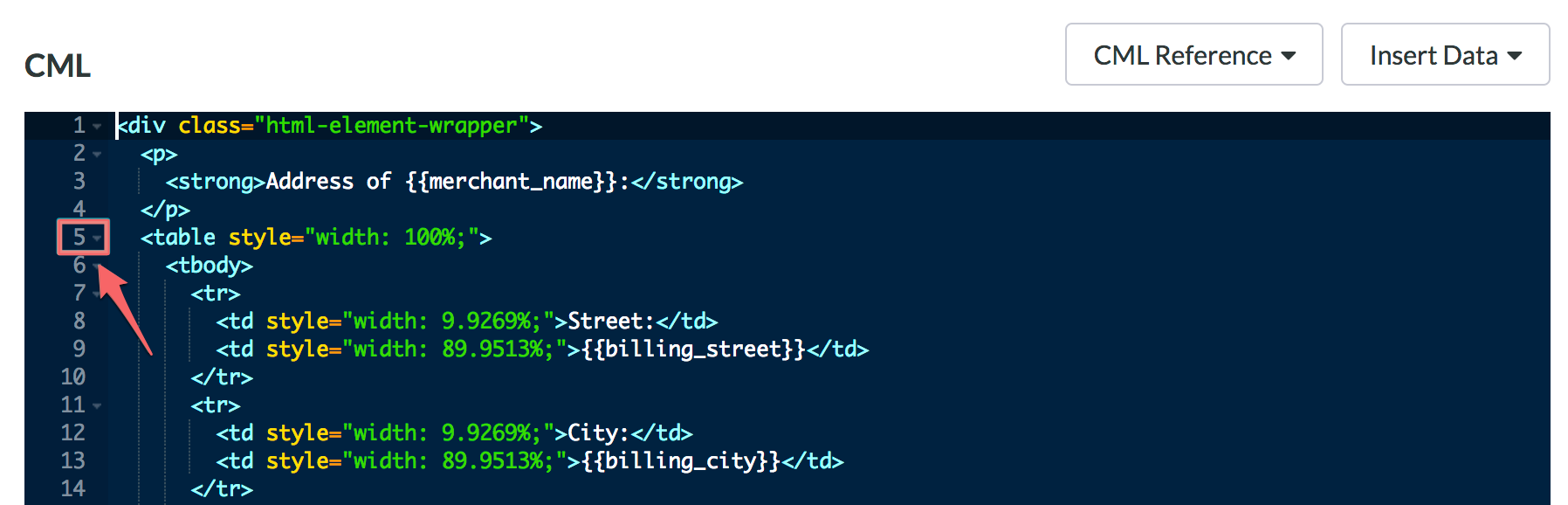
To show code sections, click the arrowhead again or the double-sided arrow between the HTML tags.

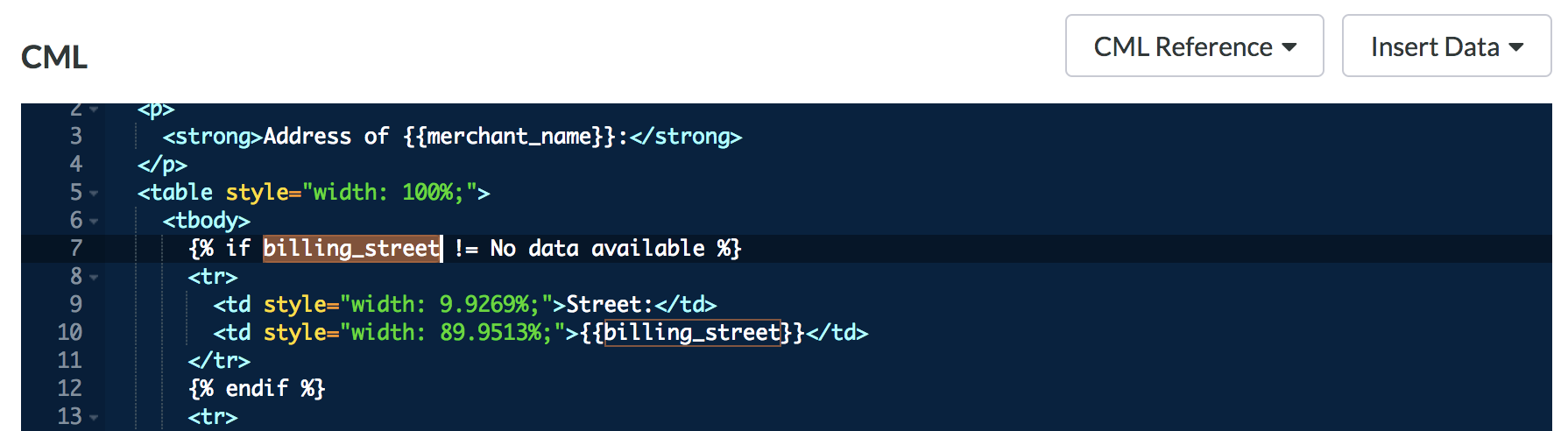
Highlight Similar Text
Highlighting a word within a HTML or CML tag will highlight all matching words in the selected editor box.
Live Syntax Checker
As you type in the CML box, the live syntax checker will appear and provide information regarding incorrect syntax.