
Overview
Organization Admin provides the ability to manage multiple teams within a single organization. An organization admin can check the status and progress of jobs across all associated teams at any time. This feature allows the user to view all teams with a single login and can monitor funds available in each team and add funds when required. This feature is only available to our Enterprise Customers. Please contact your Customer Success Manager for access to this feature.
Organization Admin View
Team Jobs Page
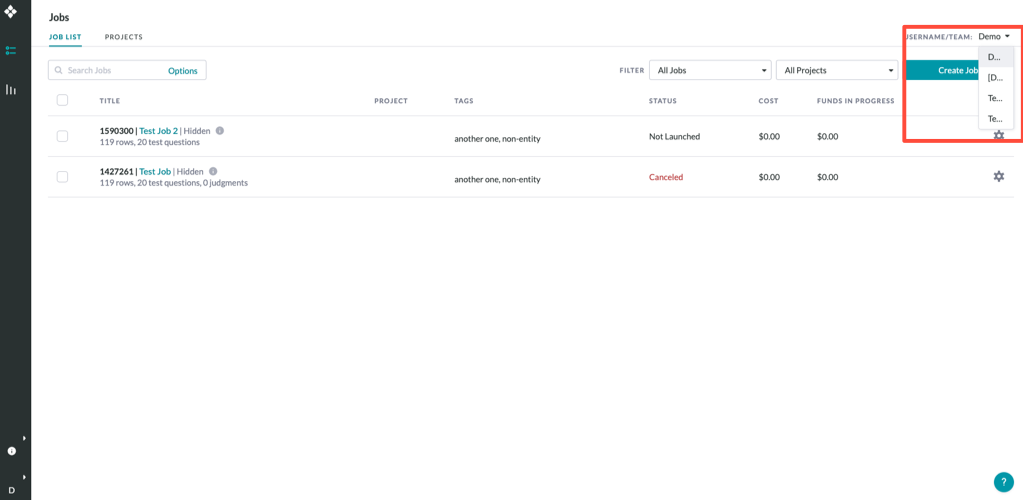
For each job in the organization, the admin can:
-
View all pages related to a job - Data, Design, Quality, Launch, Monitor, and Results.
-
Add data, update the job design, and create test questions.
-
View launch settings and report settings but cannot edit.
Note: The Organization Admin cannot launch jobs that belong to other teams.
Account Page
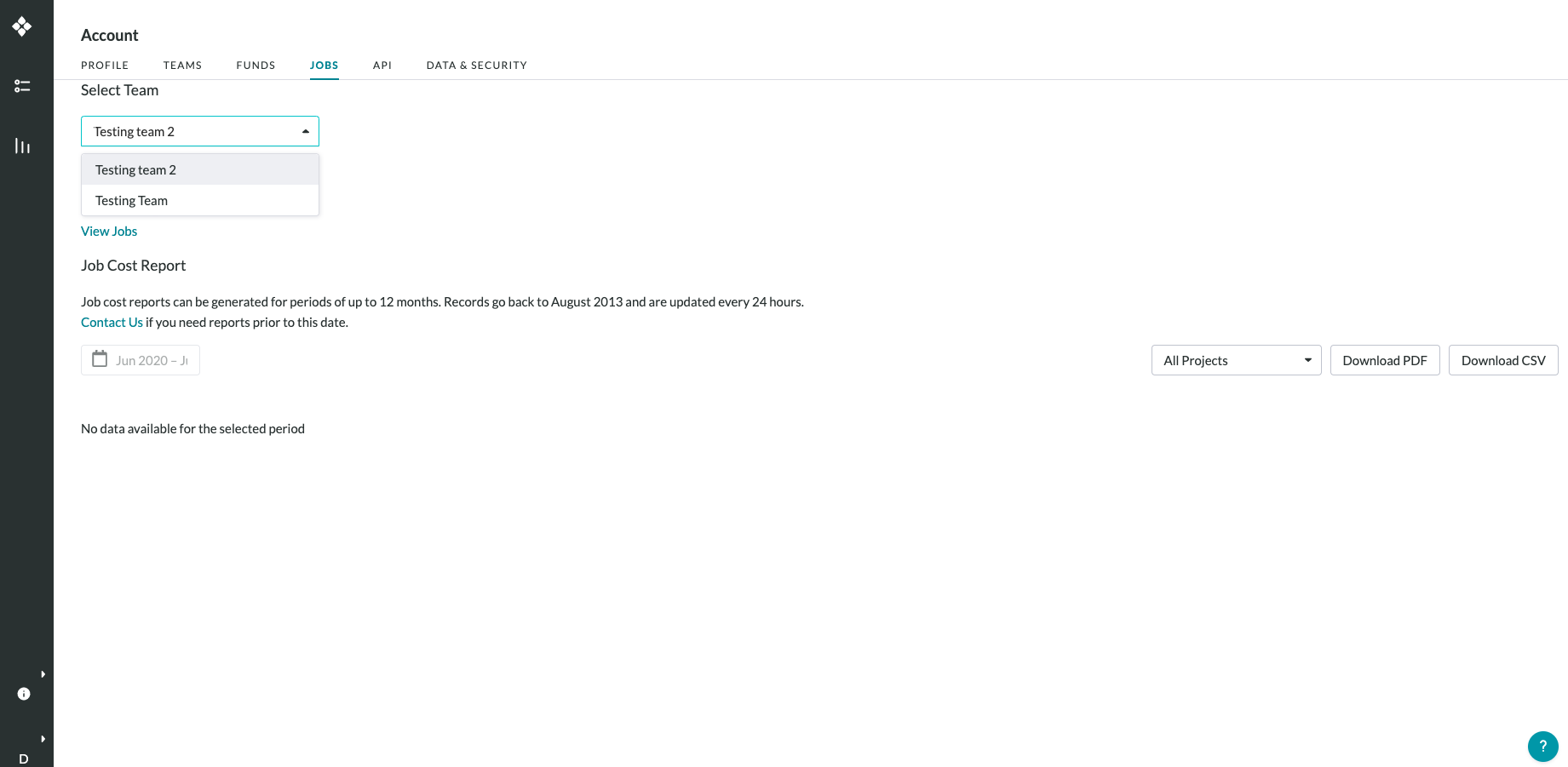
After selecting a team to view, the Organization Admin can view each of the following tabs of the Account Page accordingly
-
Team
-
View a list of the selected team's members or pending invitations
-
Invite users into the selected team.
-
-
Funds
-
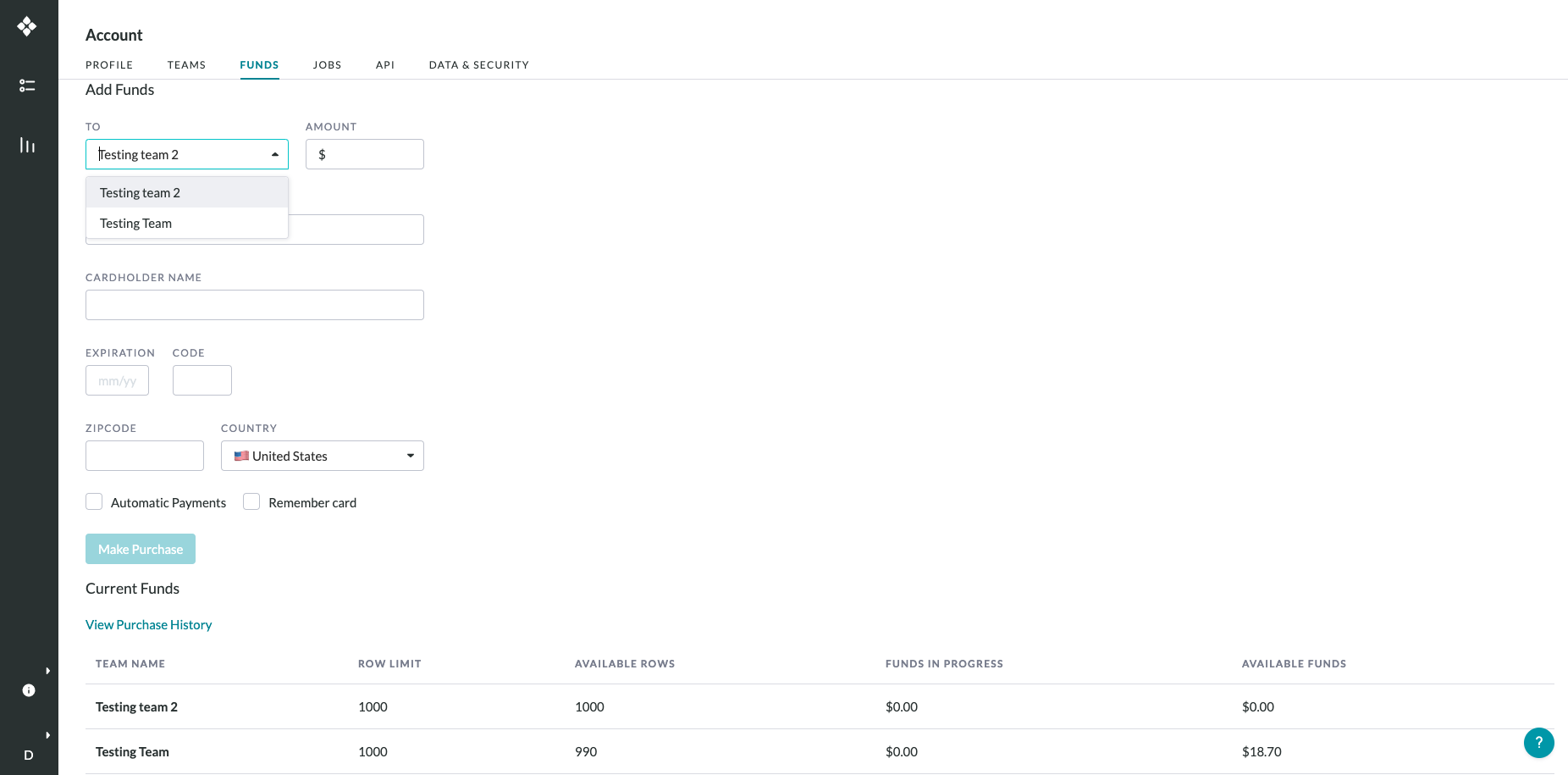
Add funds to any team
-
View all team's Available Balances and Funds in Progress
-
View all row and subscription details are specific to the team selected
-
View purchase history for the team, which includes payments made by any user in the organization
-
-
Jobs
-
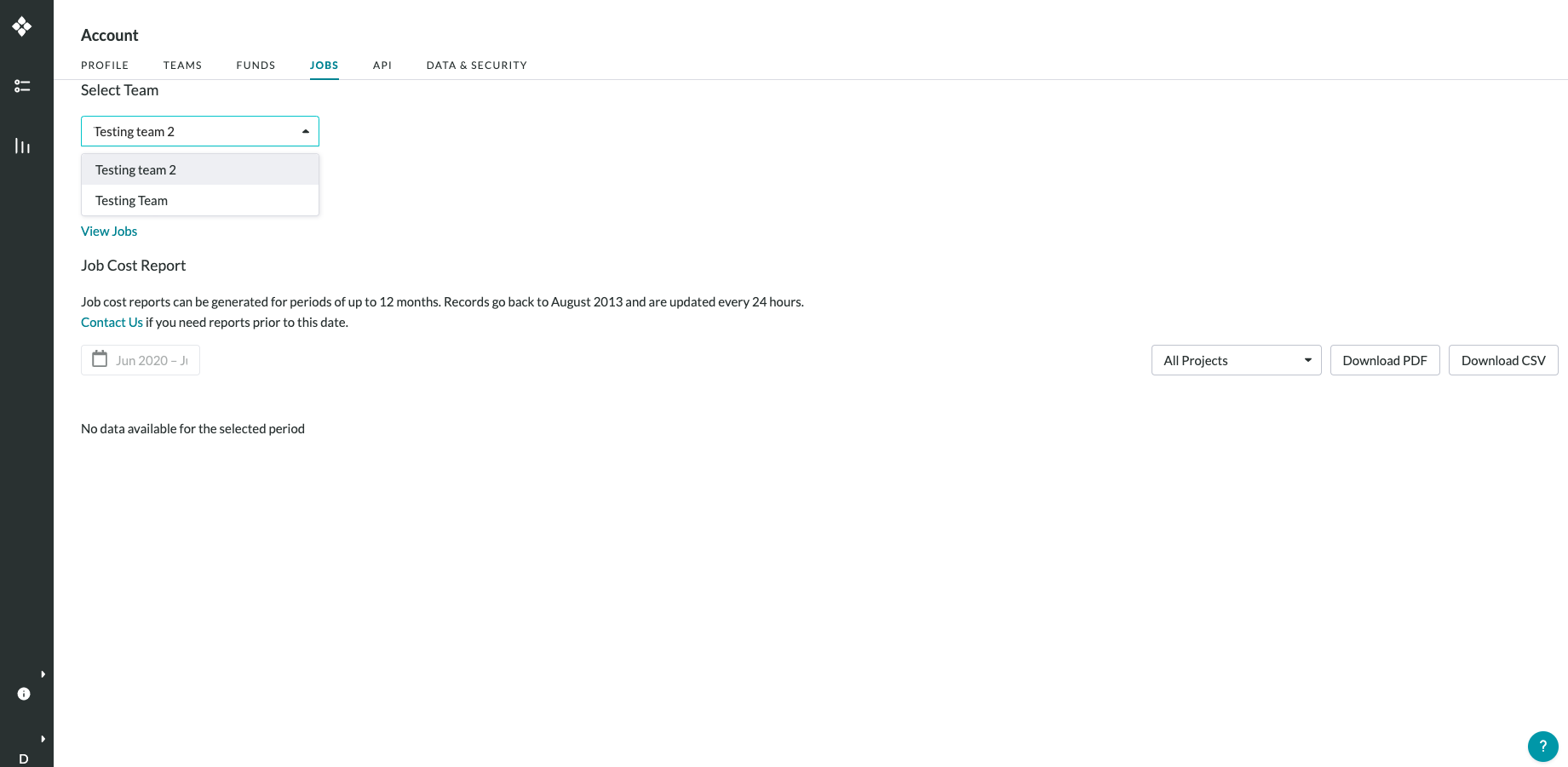
Access a list of all the jobs that are currently in progress for each team
-
Access job cost report for any team in the organization
-
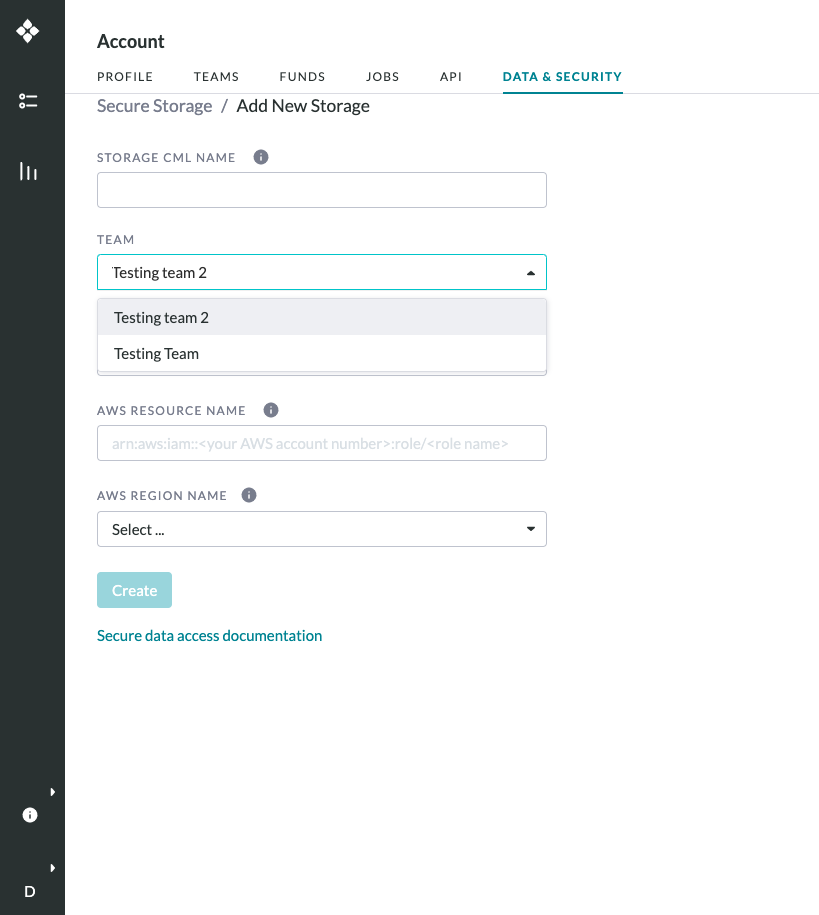
Data & Security (if enabled)
-
Add new Secure Data Access integrations to a selected team
-
View any Secure Data Access integrations already set up for a team
Note: Organization Admins will only be able to view this tab if enabled. To get Secure Data Access enabled for your organization, please reach out to your Customer Success Manager.
Note: The Data & Security tab is not needed for Dedicated customers to use the Secure Data Access feature. For more information, please refer to this article.
Job Cost Report Guide
Job Cost Reports can be generated anywhere from the first job launch to the most recent in a single account to help provide accurate information on the total amount spent and the complete list of jobs ran in over a given period. The Job Cost Report page can be accessed by clicking the 'Jobs' tab in the account details page.
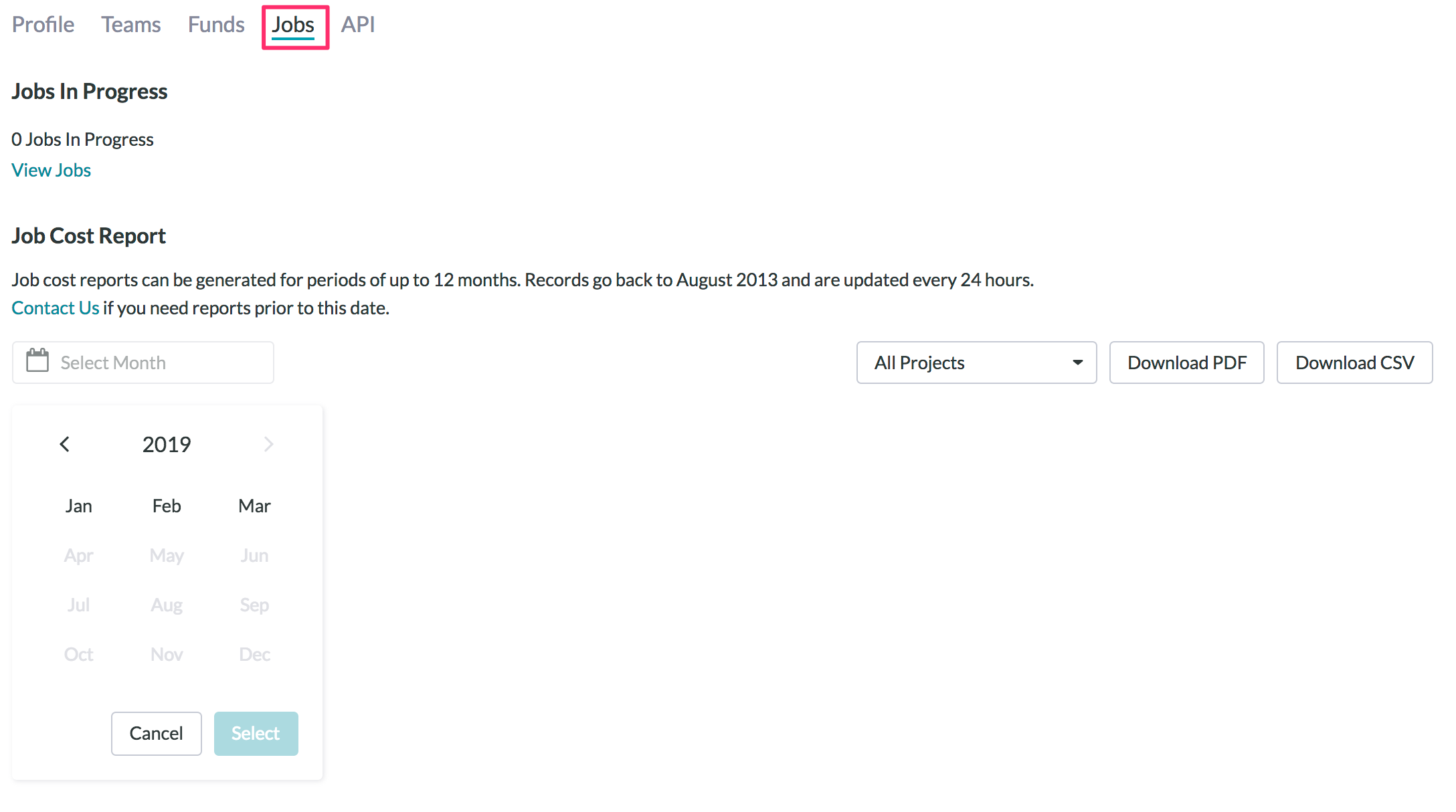
Job Cost Report Page Overview
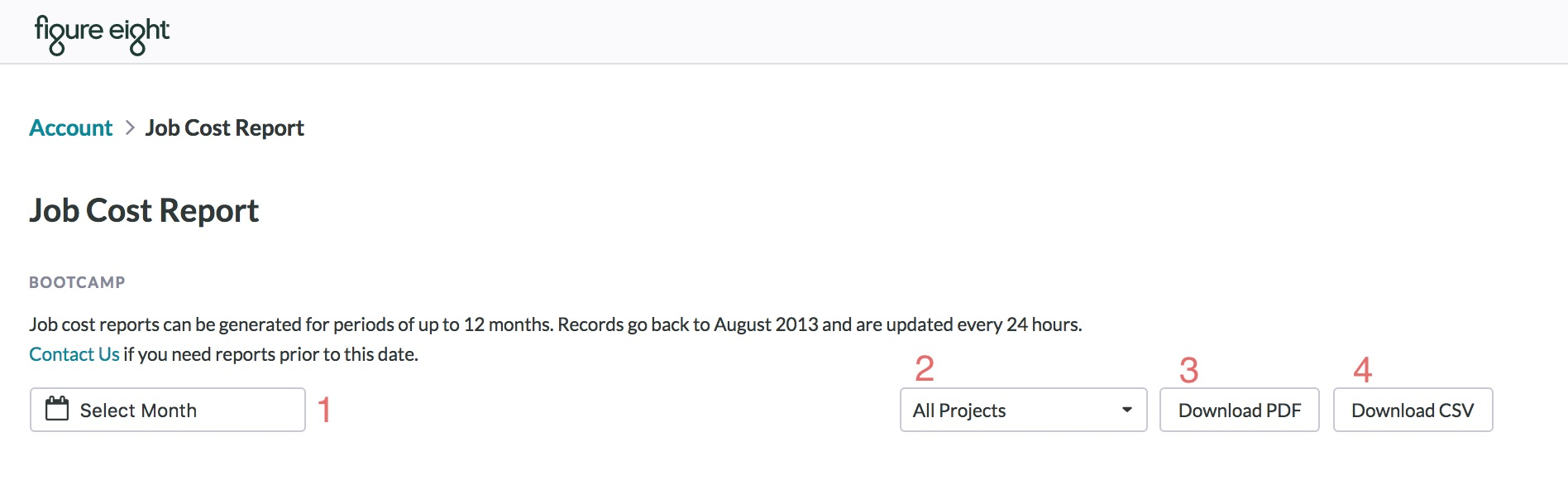
As seen above, users may take the following actions:
-
Filter jobs for a given period of time (up to 12 months)
-
Filter jobs based on the project tag
-
Download a PDF of jobs over the given period
-
Download a CSV of jobs over the given period
Note: The job cost report will be updated every 24 hours
Filter Across Months
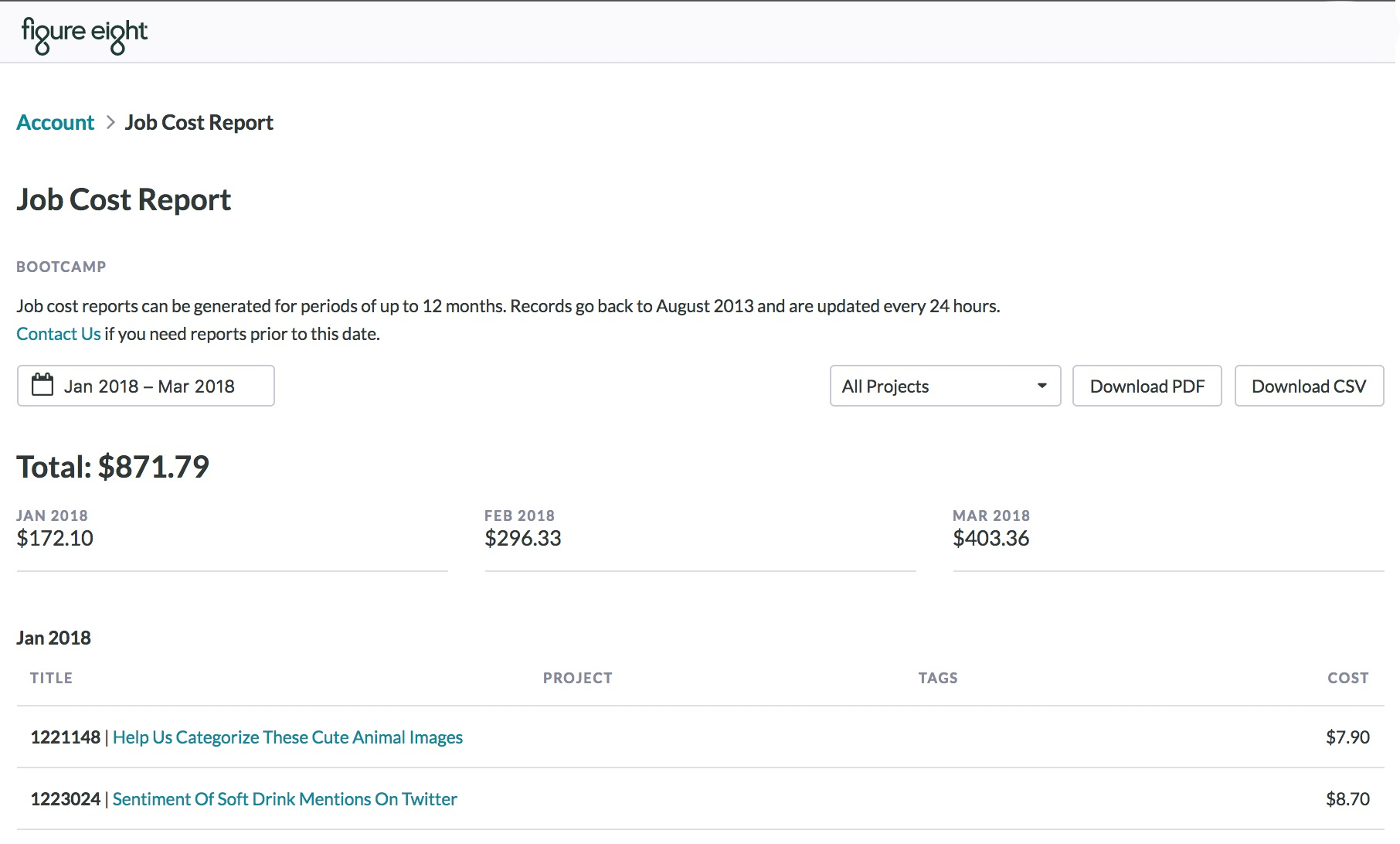
When filtering the Job Cost Report across multiple months, it displays the total amount spent in that given period and the amount spent in each individual month.
Job Cost Report
The report lists each job as a separate row, along with other pertinent information such as job cost, units launched, judgments collected and when the job is launched.

-
Month - Returns the month and year the job is launched
-
Job ID - Returns the Job ID of the job
-
Title - Returns the title of the job
-
Project - Returns the project tag attached to the job
-
Labels - Returns the tag attached to the job
-
Units - Returns the number of rows total
-
Judgments - Returns trusted, untrusted, and test question judgments the job has accumulated
-
Cost - Returns the cost accrued in the job
-
State - This will reflect the state of the job. The job state can be in “finished”, “canceled”, “paused” or “archived”