Downloading your data
Your data can be downloaded from the project-level DATASET, and it will always output the latest result in the columns that begin with "latest..." (there is no need to regenerate).
-
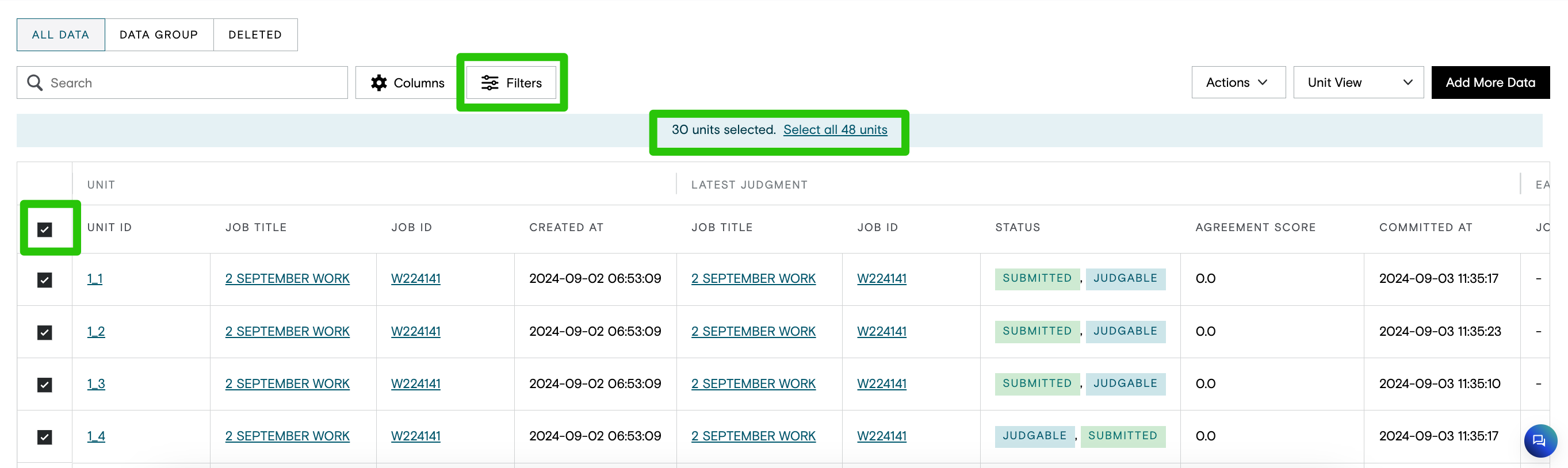
Check the box in the header row of the data table to select all units in the page.
-
If you only require a subset of the data, filter just the rows you would like to include in the download and then check the box in the header row of the data table to select all the matching units on the page.
-
When you have multiple pages of data, you will be given the option in the colored panel above the table, to Select All units in the Project, or all units in the Project matching your filter, if you have one.
-
If units have been routed from one task to a subsequent task, where replacement or additional annotations have been made (e.g. a QA job with "Allow QA to Modify" enabled), the
latest judgment.{field}will be updated with the most recent judgment for that field. To compare older judgments you can parse the JSON data inextra.allCommitsBinfrom the Dataset Report. -
Additionally, there are job-level full and aggregate reports available (see Reports in Quality Flow and Guide to: Multiple Judgments in Quality Flow Projects). Note that job-level reports contain judgment data for units currently in that job.
-
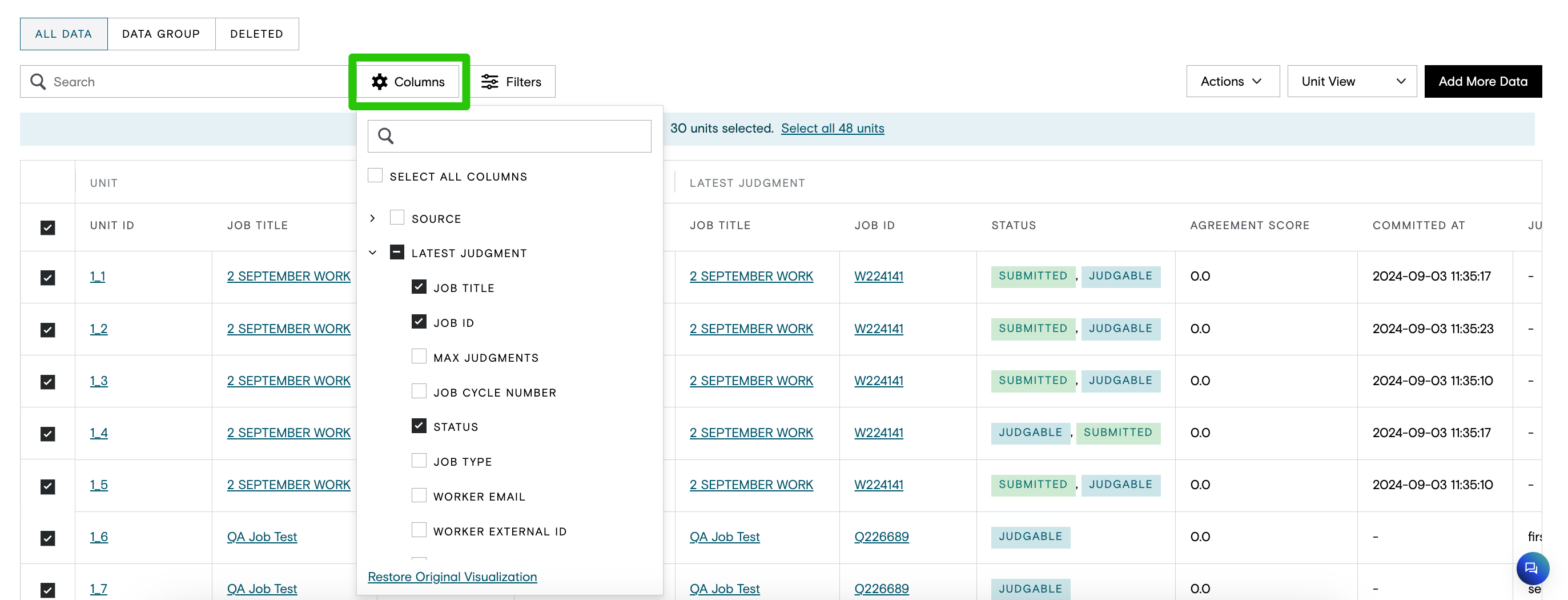
You can also use the column picker to limit which columns from the dataset table you would like to include in your download.
-
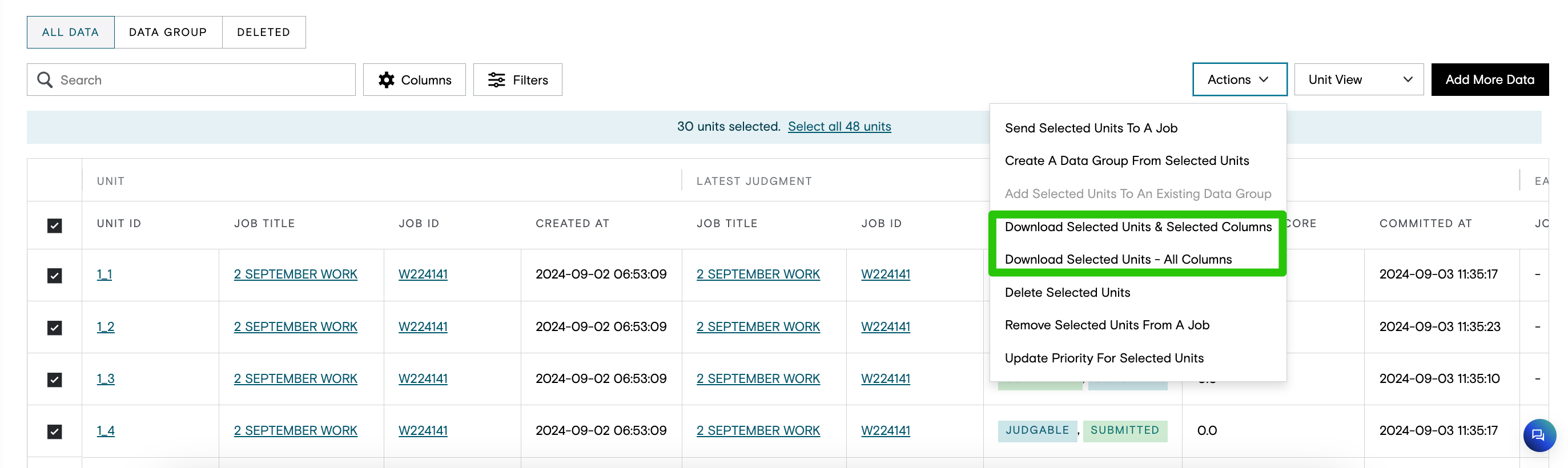
Click on Actions > Download
-
Note the Actions will be greyed out if you have no units selected.
-
-
Choose whether you would like to download just the visible, or Selected Columns, or All Columns
-
Note there are some columns containing metadata that are not selectable in the table
-
A pop-up will appear at the bottom of the screen.

Click on the "Check progress and download" button to be taken to a table where you can view progress and download the result, by clicking Download in the Actions column.
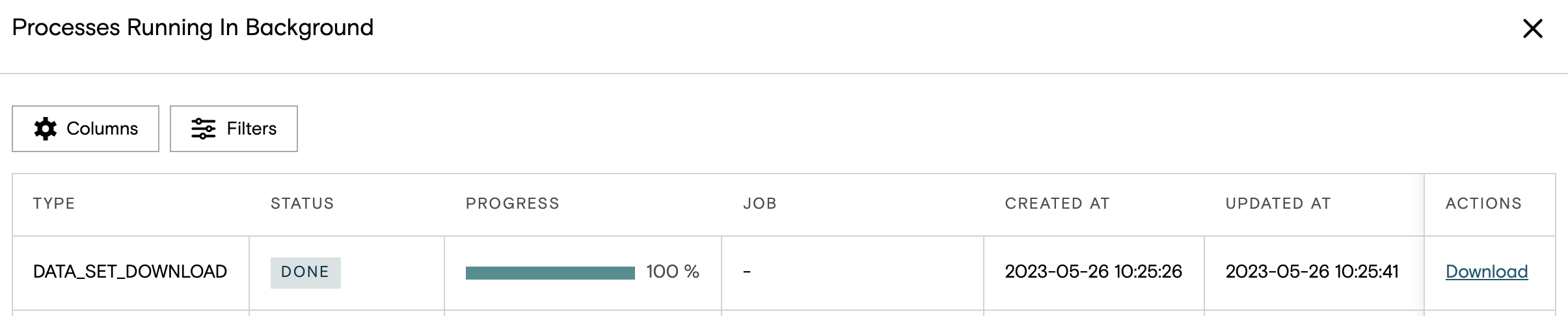
While the Download is in progress, you can click Cancel to stop the Download.

TIP: You can use the "Processes Running in Background" table to view progress on any Action you are performing (such as uploading data, or moving units from job to job). It can be accessed by clicking on the "Processes Running In Background" Icon at the top right of the DATASET page.